Ordering your jobs in Okappy
Keeping your job list organised makes it easier to plan your day and ensures your engineers always know what they need to do next.
In Okappy you can choose how your jobs are ordered: either by when they were added, by the appointment date or using your own custom order.
This guide explains how to change the order of your jobs on the web and mobile versions of Okappy and how your engineers can view jobs in different orders.
Ordering jobs by when they were added
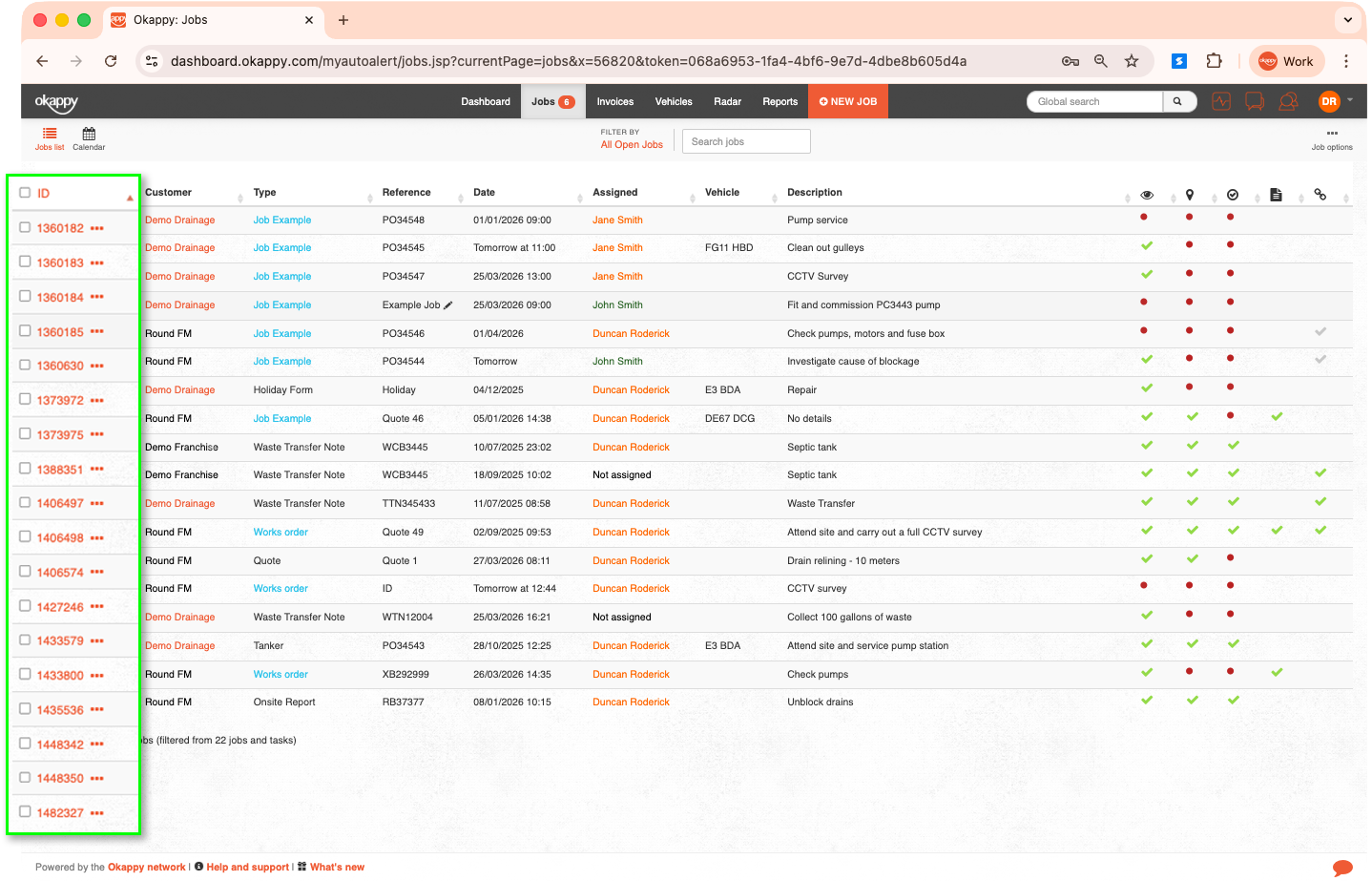
If you want the newest jobs to appear at the top of your list, you can order your jobs by their Okappy ID. You can order the jobs with the most recently added first at the top or vice versa.
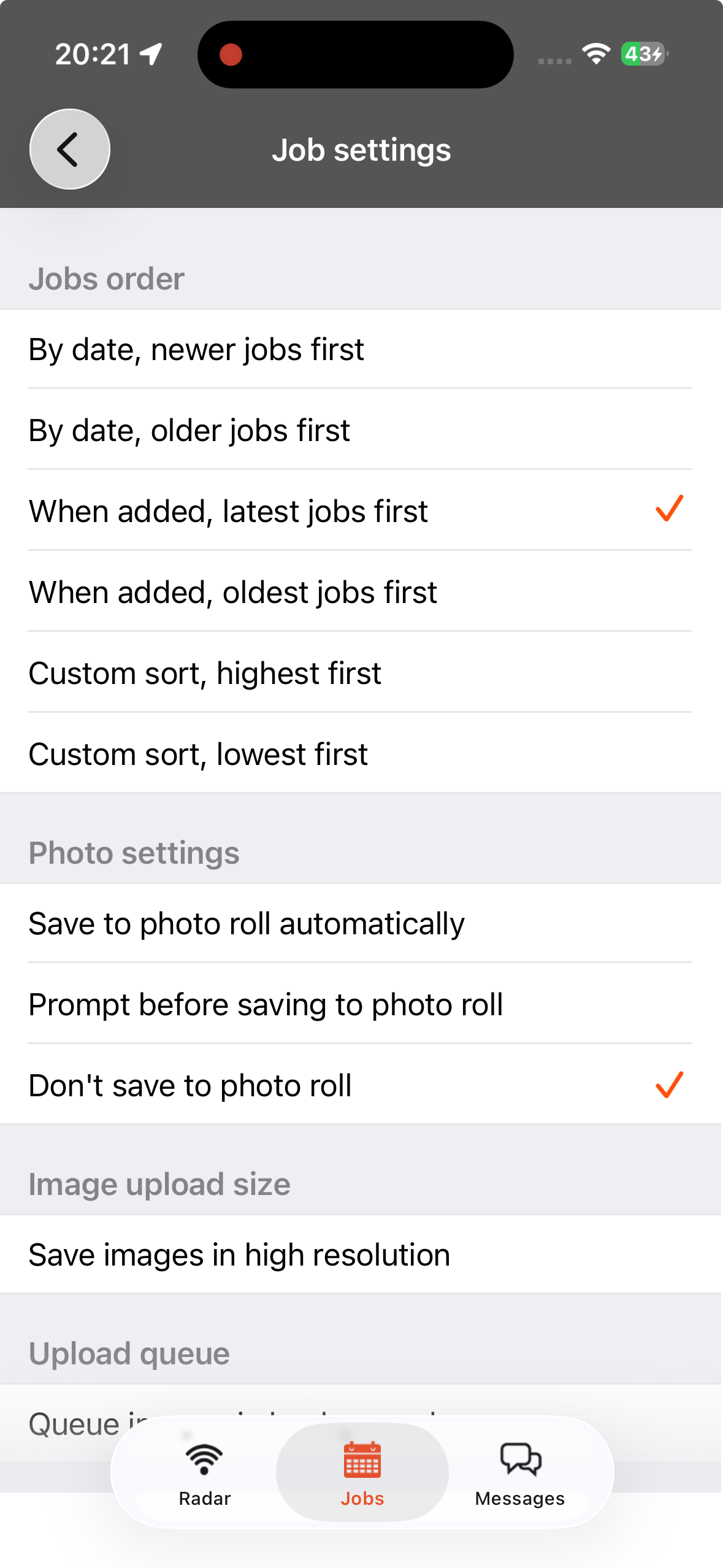
You can do the same thing on the mobile app. From within the jobs screen
- Click the Okappy icon
- Select Job settings
- Choose your Jobs order
- Select either When added, latest jobs first or When added, oldest jobs first
Ordering jobs by appointment date
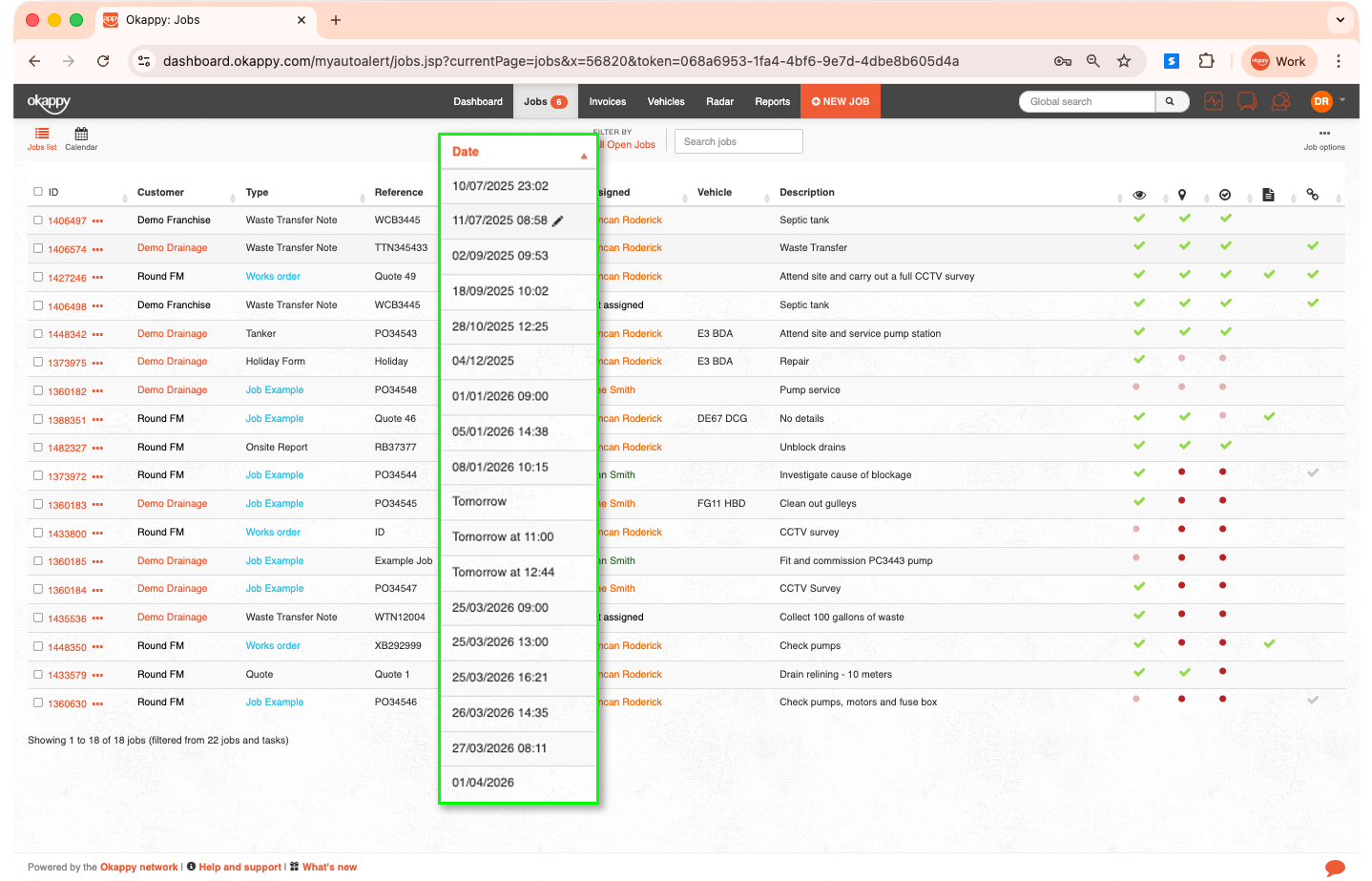
Sometimes you want to see jobs in the order they are scheduled to be done. Ordering by appointment date shows jobs sorted by the date and time of their appointment.
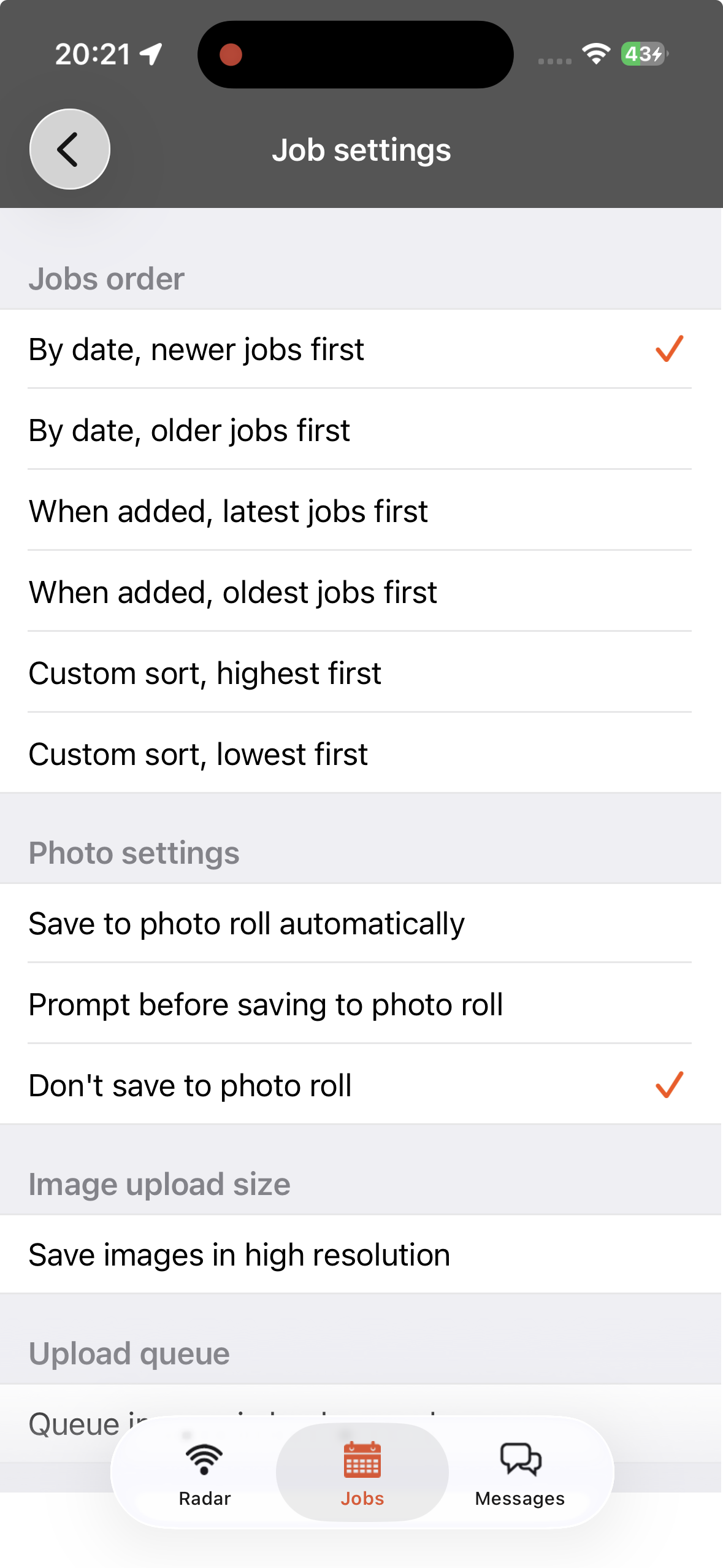
To order the jobs by appointment date on the mobile app, from within the jobs screen
- Click the Okappy icon
- Select Job settings
- Choose your Jobs order
- Select either By date, newer jobs first or By date, oldest jobs first
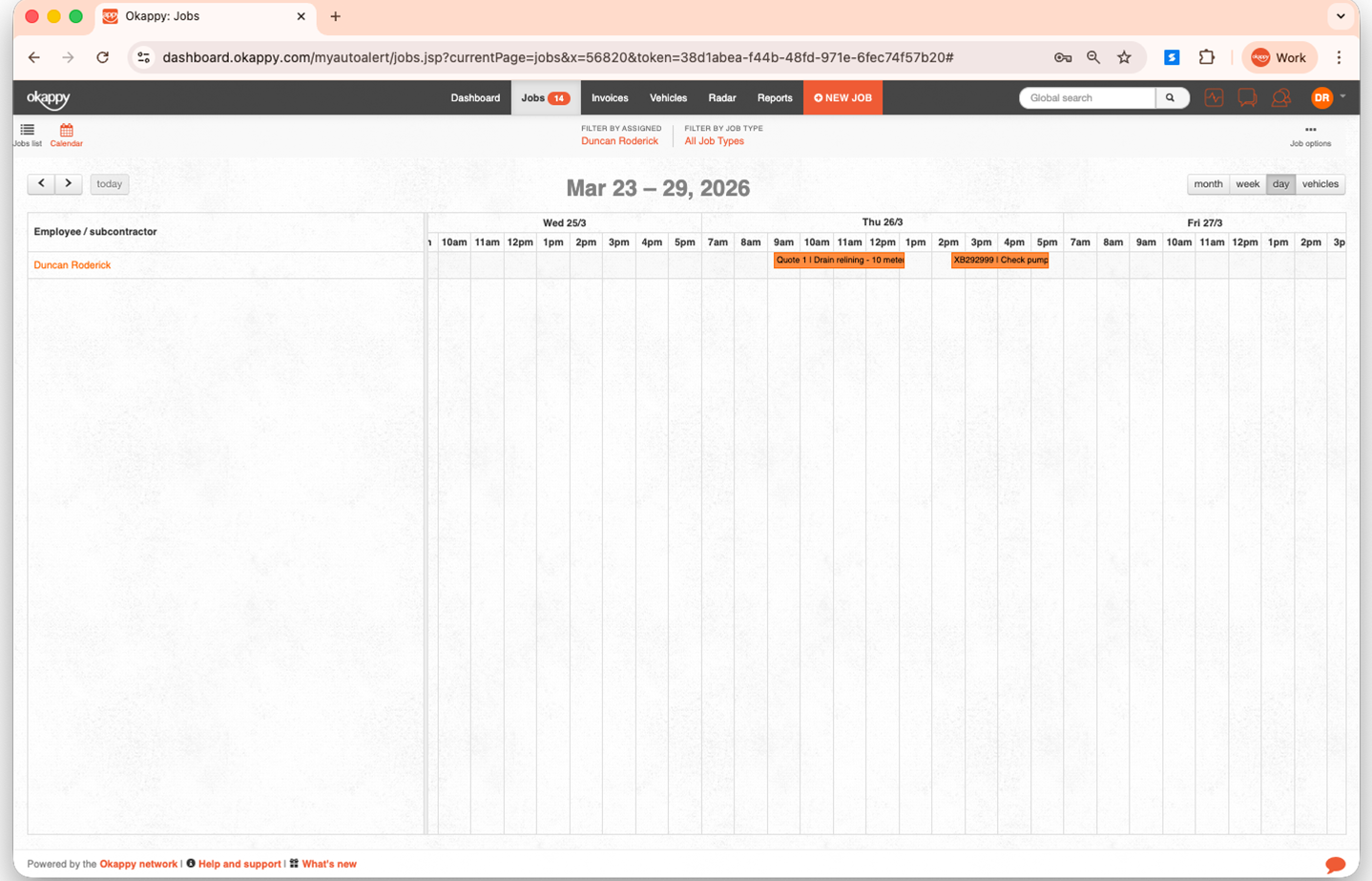
You can easily change the order of jobs for an engineer by appointment date or time. Go to the calendar view
- Select day to show your engineers and subcontractors
- Choose the relevant engineer
- Drag and drop the order of the jobs to the desired order
Creating a custom job order
If you need complete control over how your jobs are listed, use a custom order.
With custom ordering you can prioritise jobs manually, for example, group them by geography or urgency.
To set a custom order,
- From within the jobs list, select the jobs that you want to order
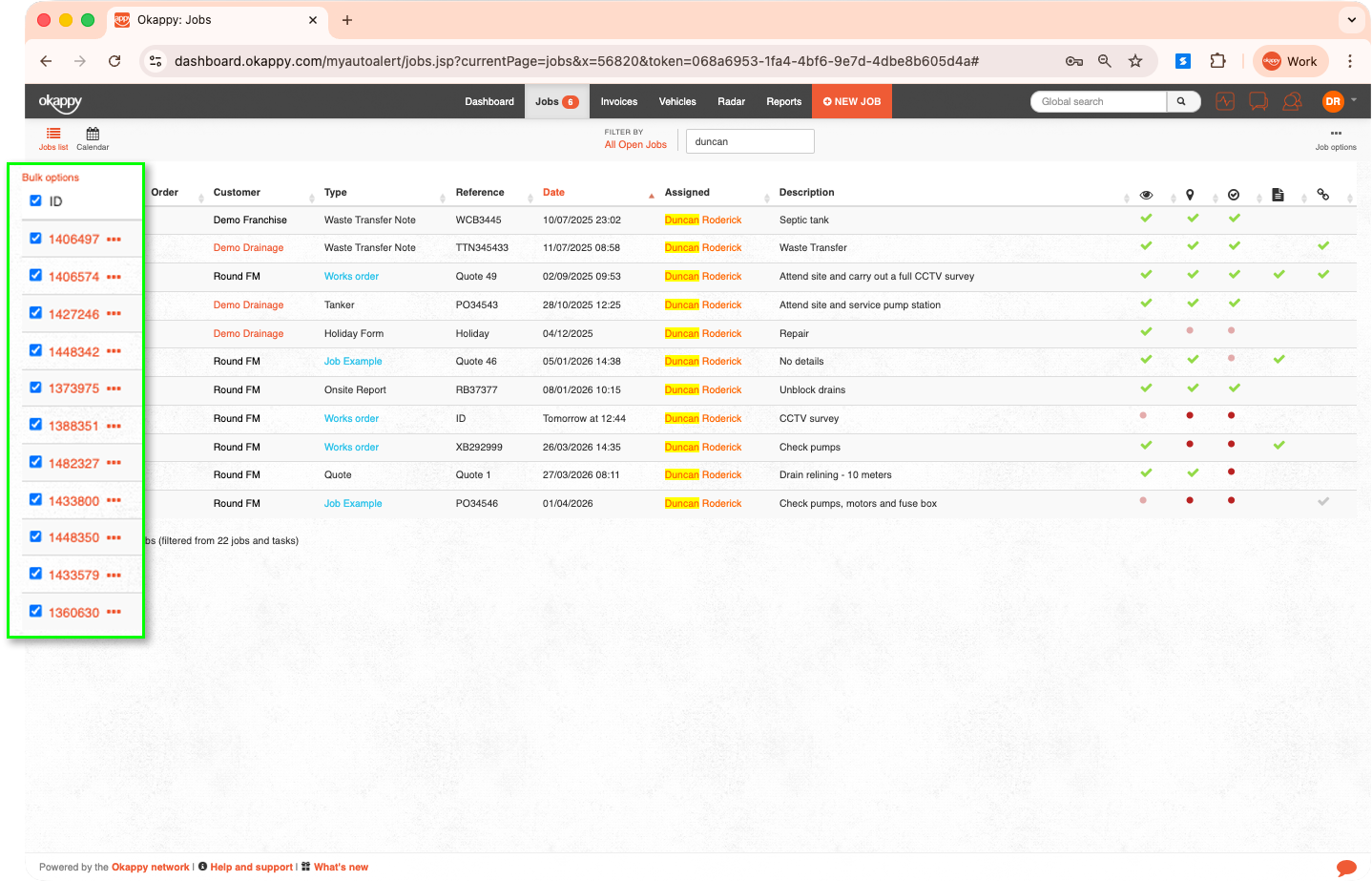
- Once selected, the Bulk options link will be displayed
- Click Bulk options
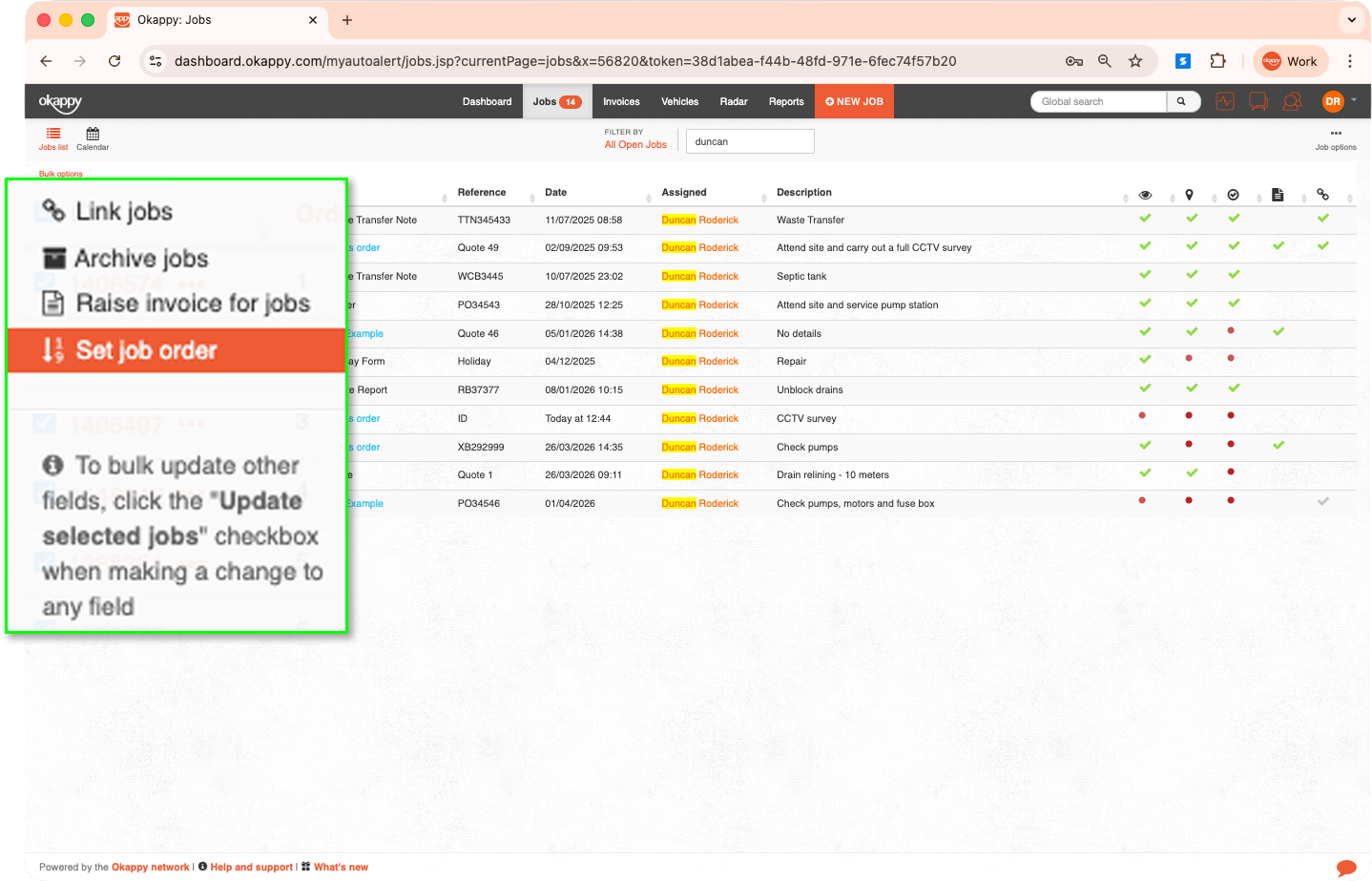
- Choose Set job order
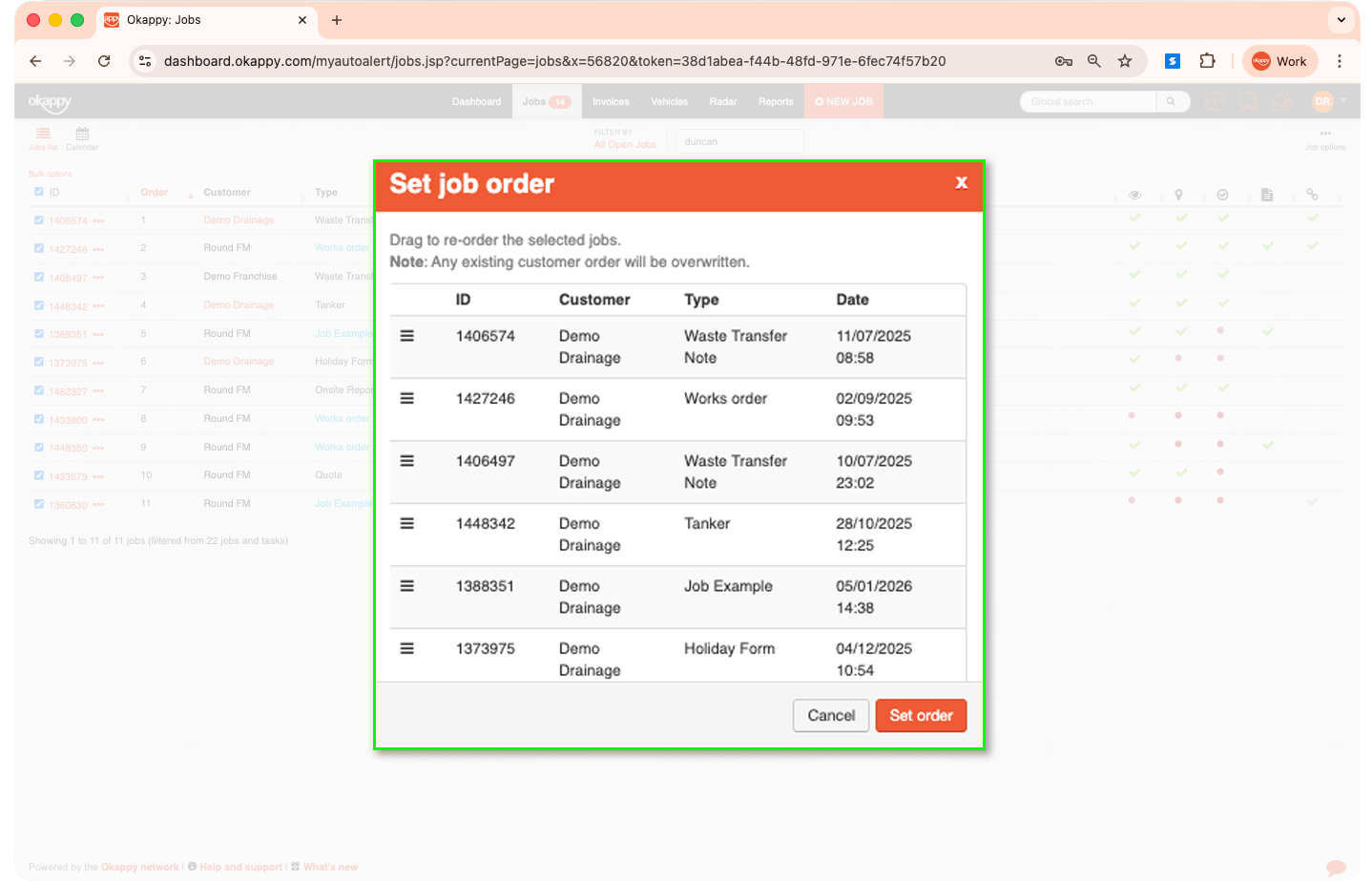
- Drag and drop the selected jobs to the order you want them to appear
- Click Set order
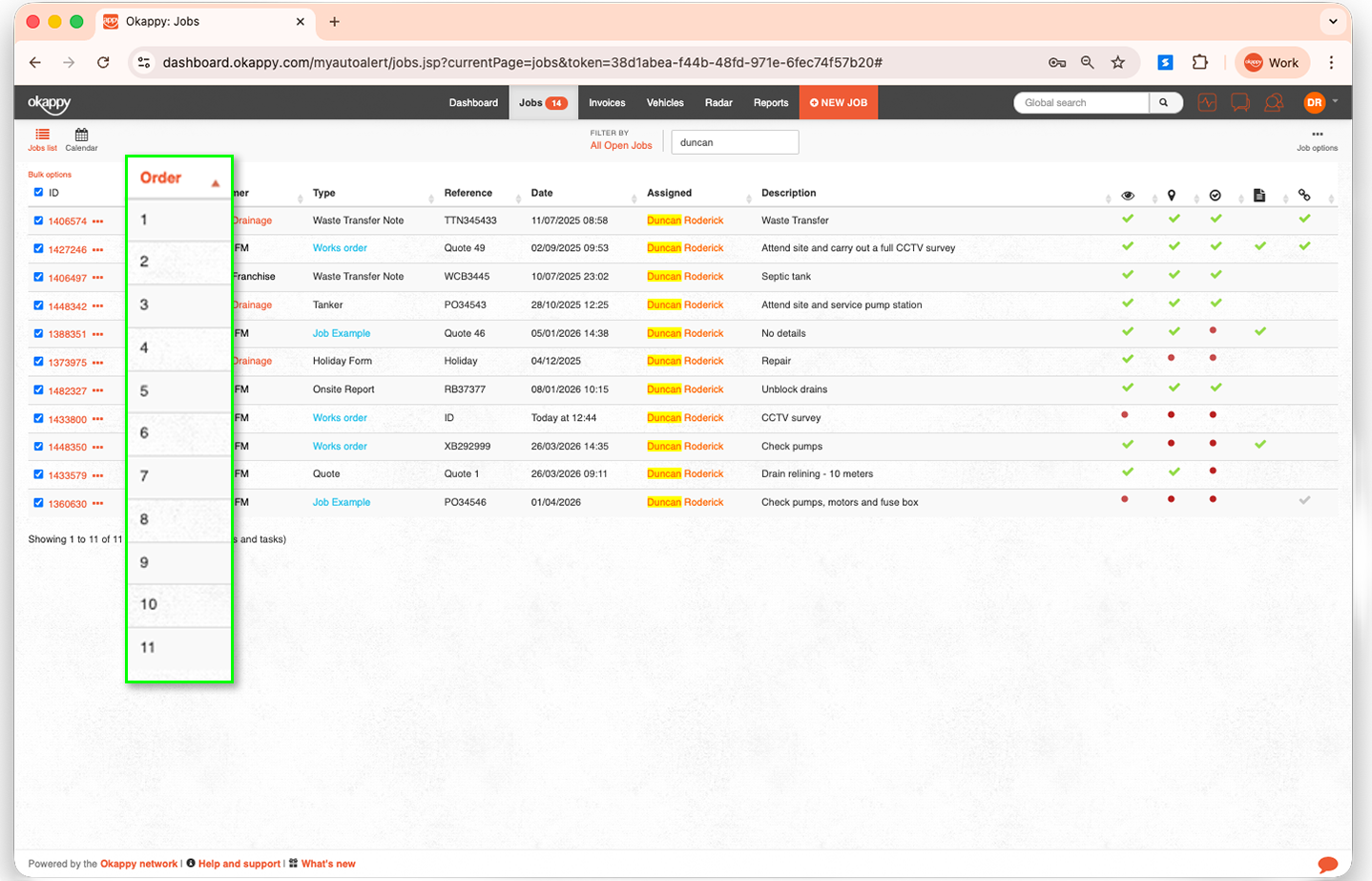
- A sequential number is added to the order column, you can then order by highest first or lowest
Note: If the order column is not showing, you can enable it from the job options menu. See the section Showing the custom order column on the web below.
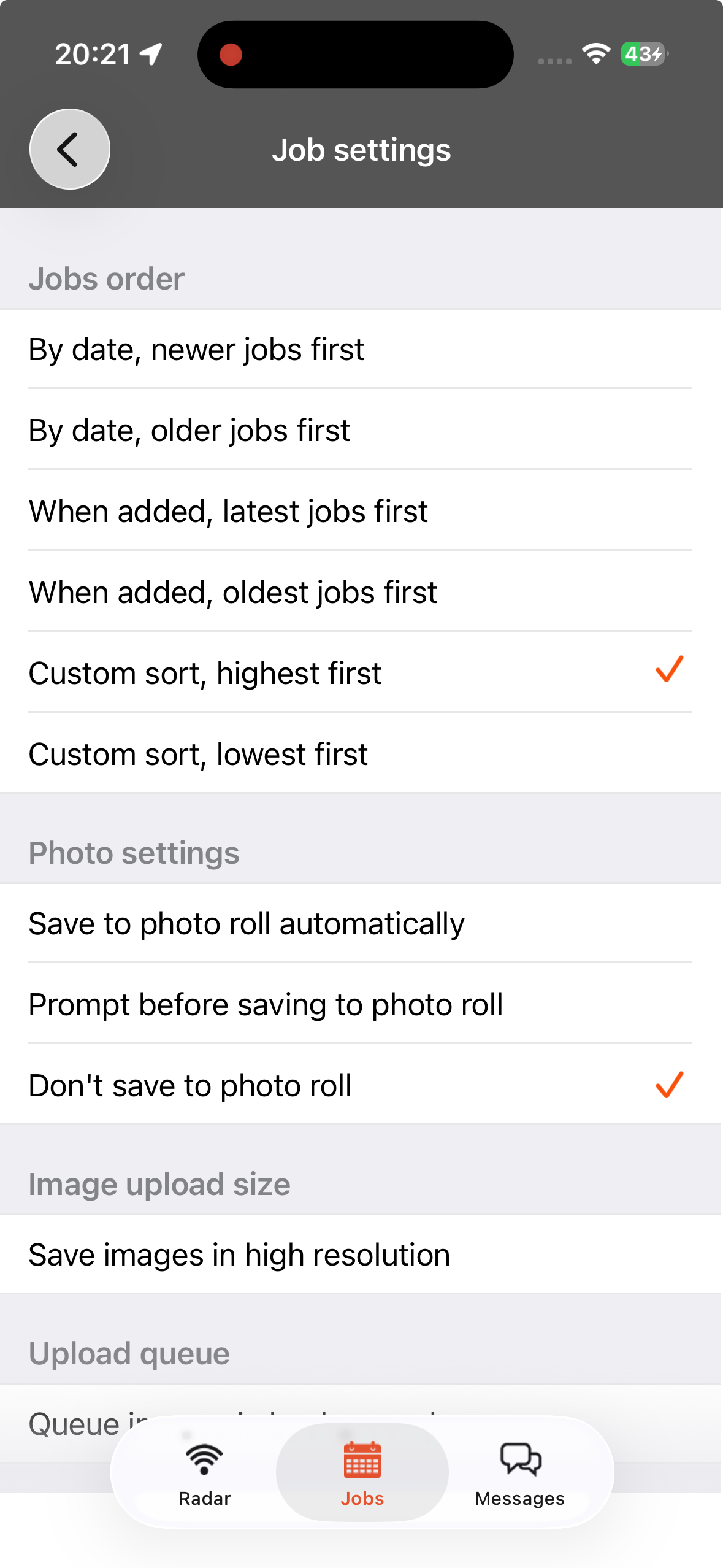
To view jobs by the custom order on the mobile app,
- Click the Okappy icon
- Select Job settings
- Choose your Jobs order
- Select either Custom sort, highest first or Custom sort, lowest first
Showing the custom order column on the web
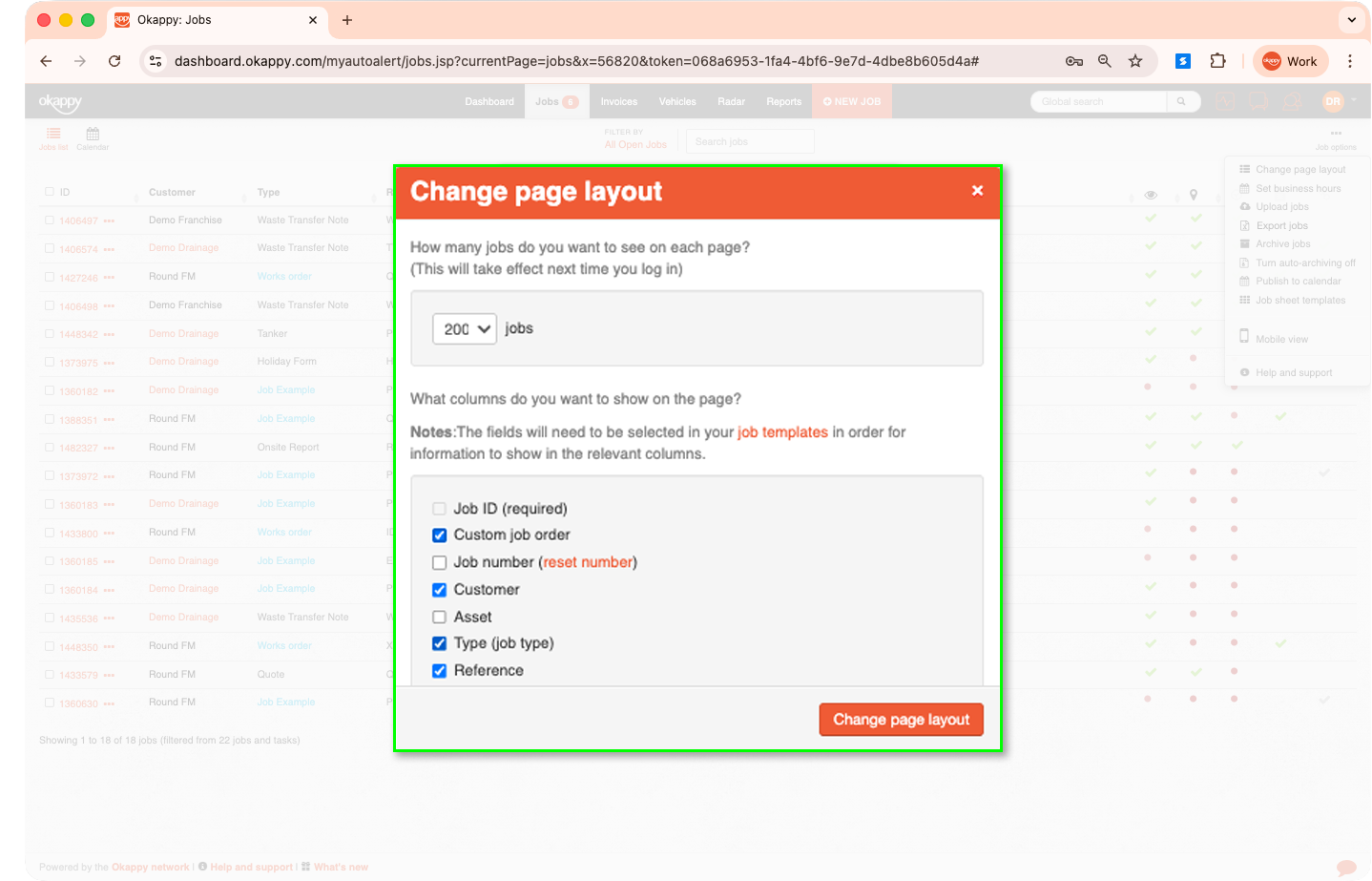
If the custom order column is not showing on the web,
- Click Job options
- Select Change page layout
- Check the Custom job order column